
Know what happens before you start.
You connect the school work and choose the homework time. Your teen gets the cue by text. You get a place to check how things are going.
Check the fit first.
For parents of ADHD or autistic teens in grades 6 to 12, in the United States.
Canvas only. OneTracker does not support other school systems today.
What your family needs.
For the extension route, use Chrome on a computer with your teen signed in to Canvas. Riveta Sync is a Chrome extension; it does not run on your teen’s phone.
Your teen needs a number that can receive and reply to SMS. You give consent during setup. You can add your own number for parent texts, or use the dashboard.
Six steps to get set up.
The app walks you through each step. You do not need to build a system or write code.
- Your teen: add their school details and review consent.
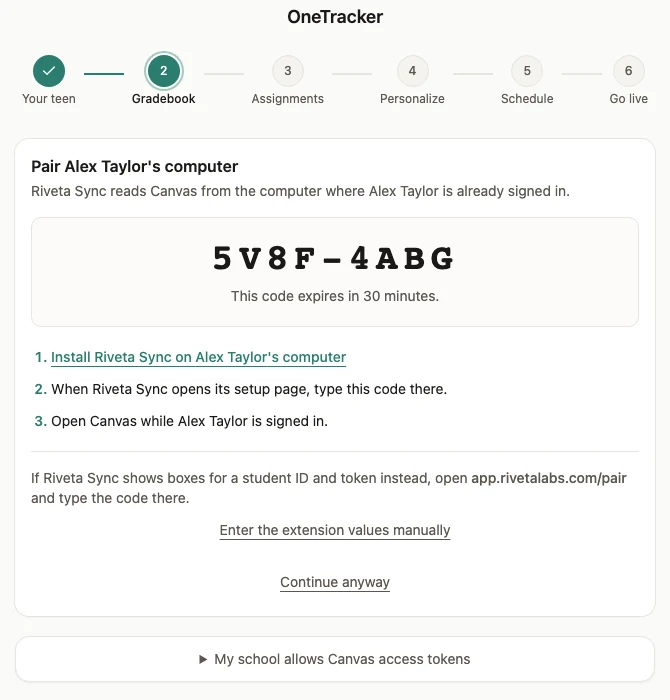
- Gradebook: connect Canvas with Riveta Sync or an allowed access token.
- Assignments: check that the school work came through.
- Personalize: add what helps us understand how your teen works.
- Schedule: choose the homework time and set up phone numbers and text consent.
- Go live: review the setup and complete the final step.
How Canvas stays up to date.
With Riveta Sync, keep your teen signed in to Canvas in the paired Chrome browser so the extension can check the work. It needs that browser session; closing Canvas stops those checks. Reopen Canvas to bring in fresh changes.
If your school allows Canvas access tokens, you can use that route instead. Scheduled server checks use the token. A token that expires or is revoked needs to be replaced.
In either case, the dashboard can only show the work it has received. Check when it last updated before treating it as the latest school record.
A school night, from cue to check-in.
Your teen’s part is to start the work, ask for help when stuck, and turn it in. Your part is to check the picture and step in where a person is needed.
- Before homework: the latest Canvas work gives the plan its starting point.
- At the chosen time: homework texts cue your teen to start. They reply by text.
- While they work: you can check the dashboard without asking for a spoken update.
- After the work: keep a teen’s DONE reply separate from a Canvas-confirmed turn-in. Check submission status before calling it submitted.
Set it up yourself, or get help.
The Sprint is optional. You can use OneTracker as a standalone subscription and set it up yourself.
The paid 10-Day Homework Sprint adds one-on-one help with setup and tuning. Choose it when you want Jacob to help get your family’s system running.
More than one child?
For more than one child, contact us about sibling pricing before you buy.
Read the terms before you buy.
The Homework-Running-or-Free Guarantee has specific setup and usage checks. It is not a free trial or an unconditional refund promise. Read the full terms and ask us if anything is unclear.